SAFE U WORKS protects
your site from heat waves.
Heat index from a single photo, plus
31℃+ heat-wave work judgment and action guidance.
* Supports OSH Act Article 39 · OSH Standards Rules Articles 559(4), 560 and 562
See How It Works
Why does on-site heat illness management matter?
- Heat-related illness
- A general term for heatstroke, heat exhaustion, heat cramps and heat syncope that occur in hot, humid conditions.
Construction sites are high-risk because of outdoor work, radiant heat and heavy protective gear. - Heat-wave work
- Work in a zone with a heat index of 31℃ or higher.
Once it is judged as heat-wave work, health measures such as cooling, schedule adjustment and rest become mandatory. - Why manage it
- Under the law in force since July 2025, failing to keep daily records of measurement, judgment, action and documentation
can lead to corrective orders and fines from the Ministry of Employment and Labor. - If violated
- From June 2026, violating heat-wave work duties can lead to fines of up to KRW 50 million.
If a worker dies, penalties can reach KRW 100 million or up to 7 years in prison.
Here’s how SAFE U WORKS manages it
-
Safety Manager
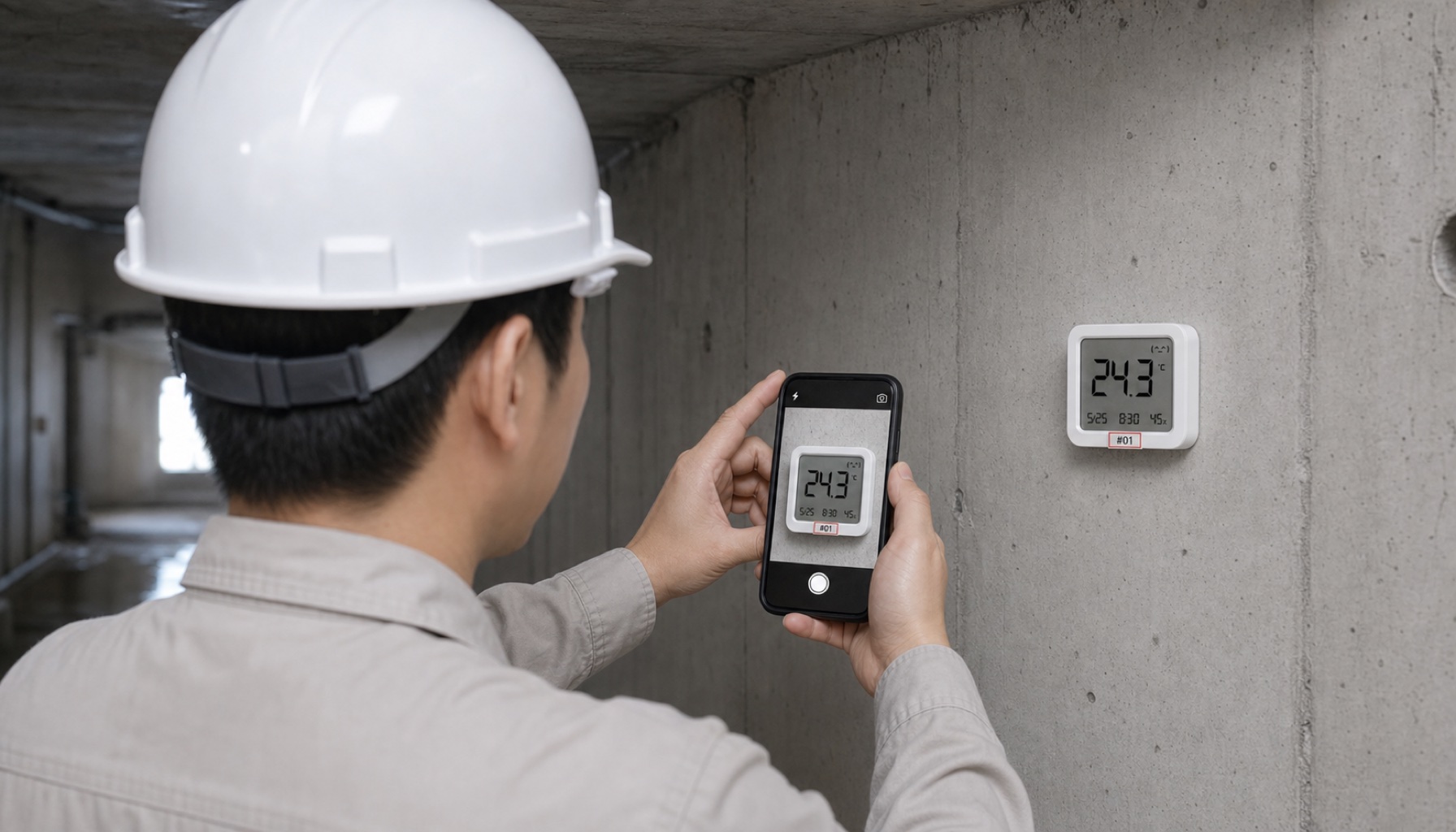
Register the heat index with one photo
Upload a thermometer photo taken on site, and AI extracts the zone, temperature, humidity and measurement time at once.
-
Safety Manager

Automatic guidance on heat-wave work actions
When the heat index exceeds 31℃, the zone is judged as heat-wave work automatically,
and the mandatory actions for each level are guided automatically. -
Workers and Safety Managers

Instant sharing between site and office
Photos taken on site sync across mobile and desktop and can be shared right away.
How to Use, Step by Step
1. Install thermometers in work zones
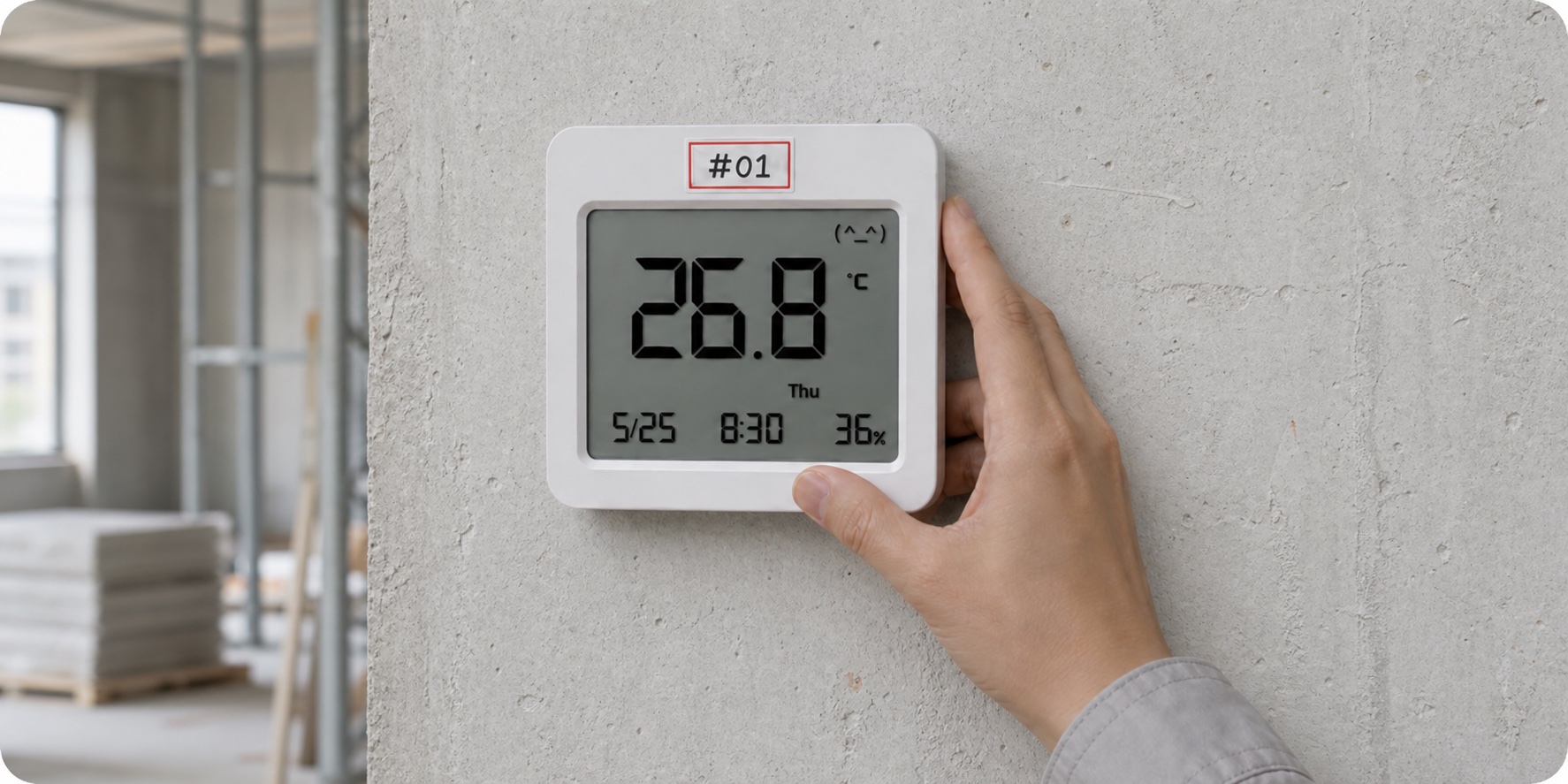
Safety Manager · First-time site setupSet work zone numbers for heat index measurement and attach them to thermometers
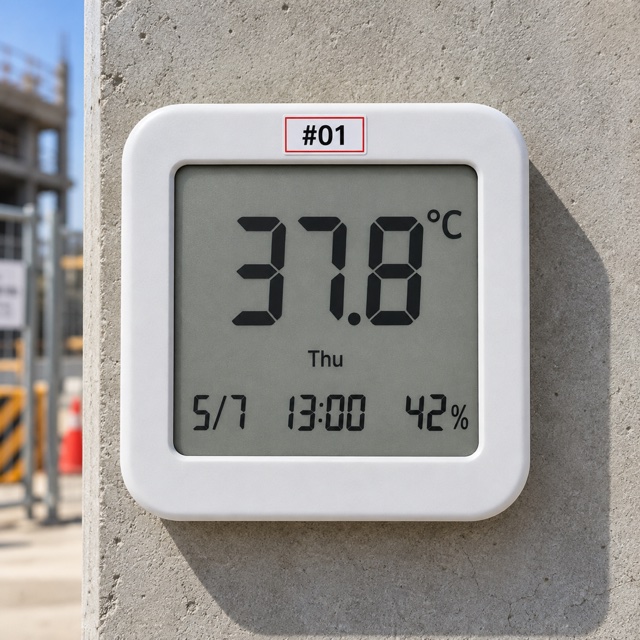
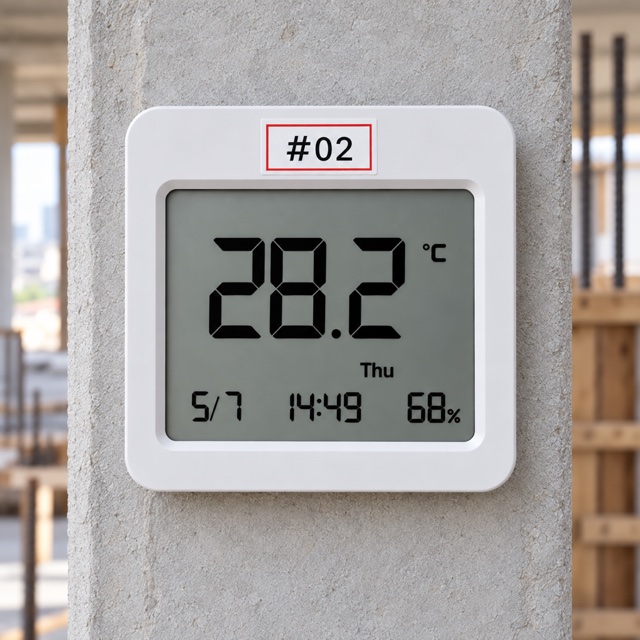
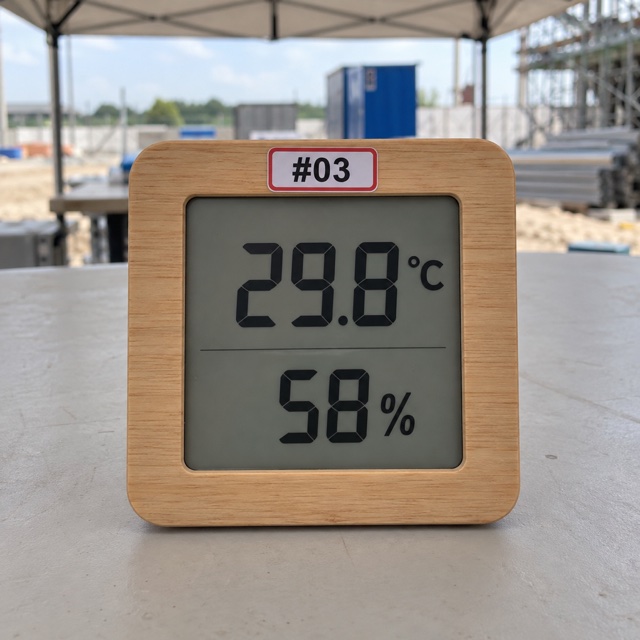
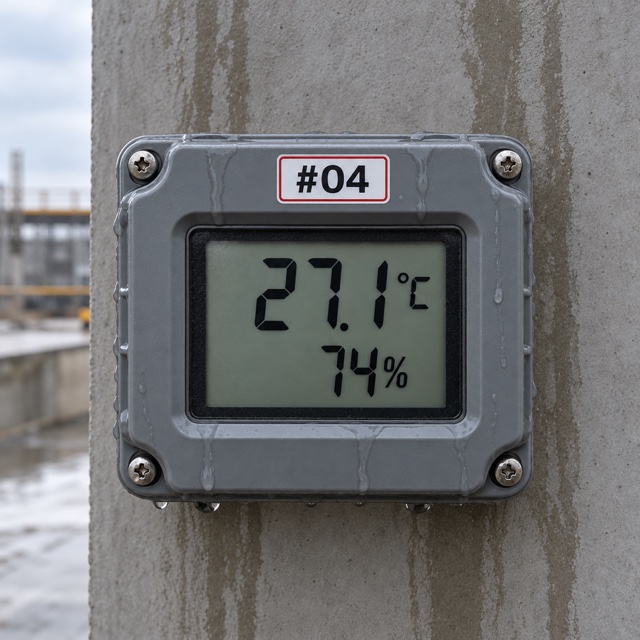
The heat index is measured and managed by zone. Attach labels like ‘#01’ and ‘#02’ to thermometers and place them in each work zone.
- 01Set zone numbers like ‘#01’ in Work Zone Management on the ‘Zones & Settings’ tab.
- 02Attach the same number to the thermometer and place it in that work zone.
Register zones and site information
Enter work zones, operating period, days off and staff on the [Zones & Settings] tab of Heat Illness Management to finish site setup.
- 01Add work zones with ‘Add Row’ and add staff in ‘Assign Staff’.
- 02Set the operating period (default May–September) and days off, then click ‘Save’.
2. Heat illness pre-work check
Safety Manager · Every day before workRun the pre-work check before starting work
A daily check, before work begins, that heat-wave prevention measures are in place.
- 01Choose the date to check on the ‘Pre-work Check’ tab of Heat Illness Management.
- 02Click ‘Register Check’ to open the pre-work prevention check window.
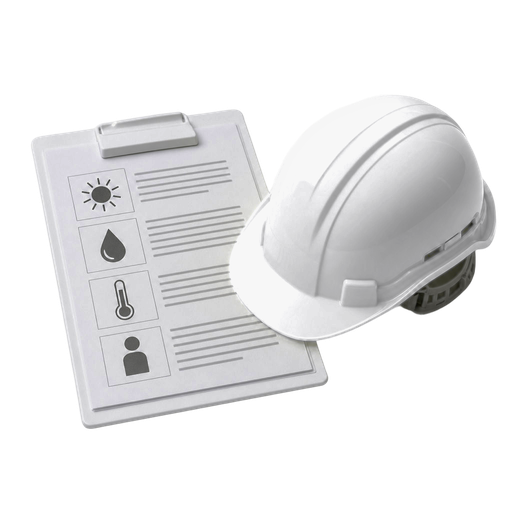
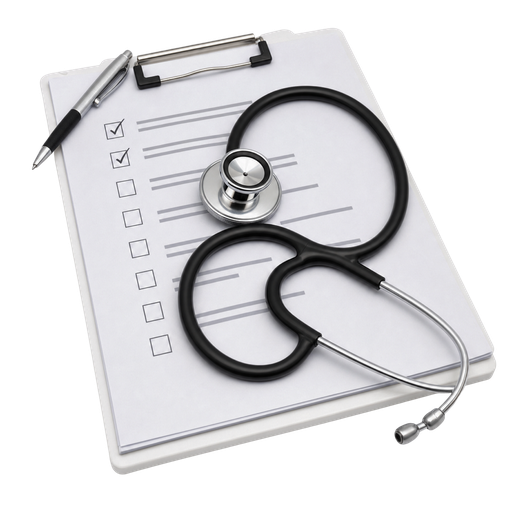
Check heat illness prevention items
Use the [Register Check] button on the right to check the status of each prevention item.
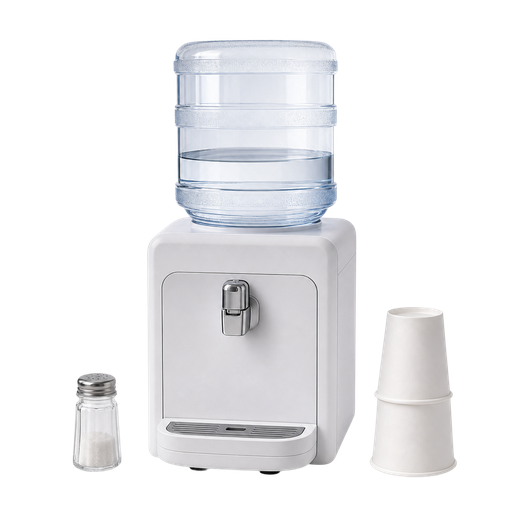
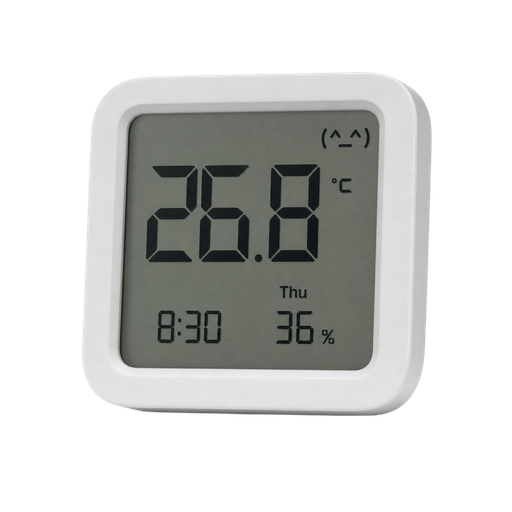
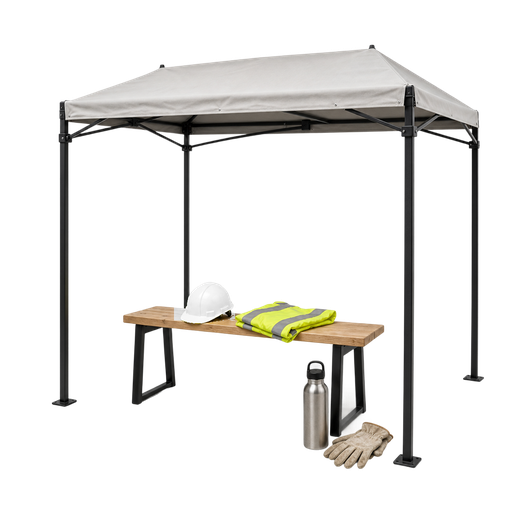
- 01For each item (prevention guide, vulnerable worker check, cold water, thermo-hygrometer, rest facilities), choose ‘Good · Action Needed · N/A’.
- 02Use ‘Load Recent Check’ to bring in your last check.
Record actions for items that need action
Once an action is entered, the item is marked as action completed.
- 01Choose ‘Action Needed’ to open an action field under that item.
- 02Write the action yourself or fill it in with ‘AI Write’, attach photos, then click ‘Save’.



3. Register the heat index
Safety Manager · Every measurementSet up work zones
The heat index is measured and managed by zone. Set up work zones on the [Zones & Settings] tab of Heat Illness Management.
- 01Click ‘Manage Zones’ in the work zone card on the ‘Heat Index’ tab.
- 02Add zones with ‘Add Row’ in Work Zone Management.
Register the heat index
Manual Entry means typing in temperature and humidity; AI Entry means uploading thermometer photos to recognize them all at once.
- 01Click ‘Register Heat Index’ on the right of Heat Index by Work Zone.
- 02Choose either ‘Manual Entry’ or ‘AI Entry’.
Fill in the registration
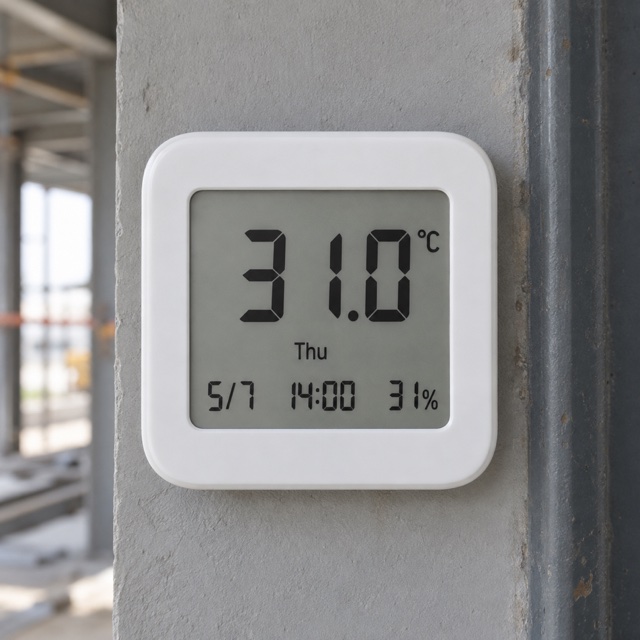
AI extracts the zone, temperature, humidity and measurement time at once from thermometer photos with #zone labels.
- 01From photos uploaded with AI Entry, the zone, time, temperature and humidity fill the table by zone, along with the risk level and guidance.
- 02Photos whose zone can’t be read gather under ‘Zone Not Recognized’, where you assign a zone to each photo.
Record mandatory actions for heat-wave work
When the heat index exceeds 31℃, the zone is judged as a ‘heat-wave work zone’. The law requires different mandatory actions by heat index, so record the mandatory health measures under the OSH Standards Rules.
- 01At a heat index of 31℃ or higher, the zone shows ‘31℃+ Heat-Wave Work’ and a ‘Register Action’ button appears in the action status.
- 02In ‘Register Action’, check the health measures taken, choose the person in charge, then click ‘Save’.

 냉방·통풍장치 가동 (에어컨, 산업용 선풍기, 그늘막 등)
 작업시간대 조정 (조기출근, 폭염 집중 시간대 작업 단축 등)
 무더위 시간대(14~17시) 옥외작업 중지 (불가피한 경우 제외)
 추가
4. Mobile and PC
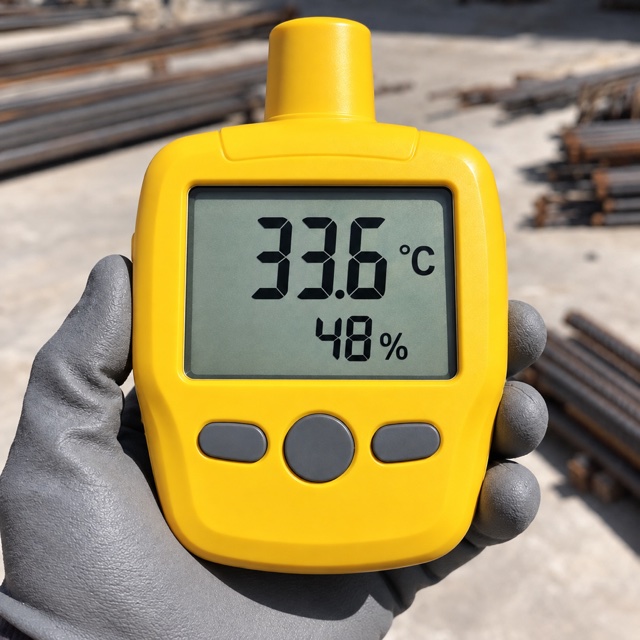
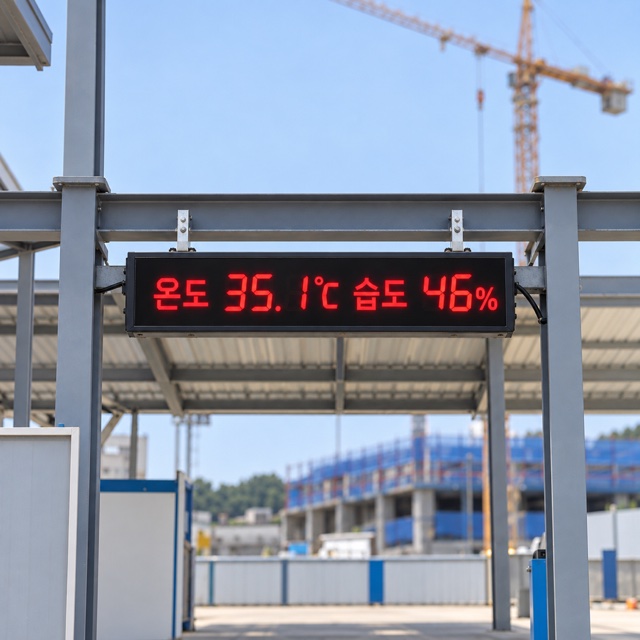
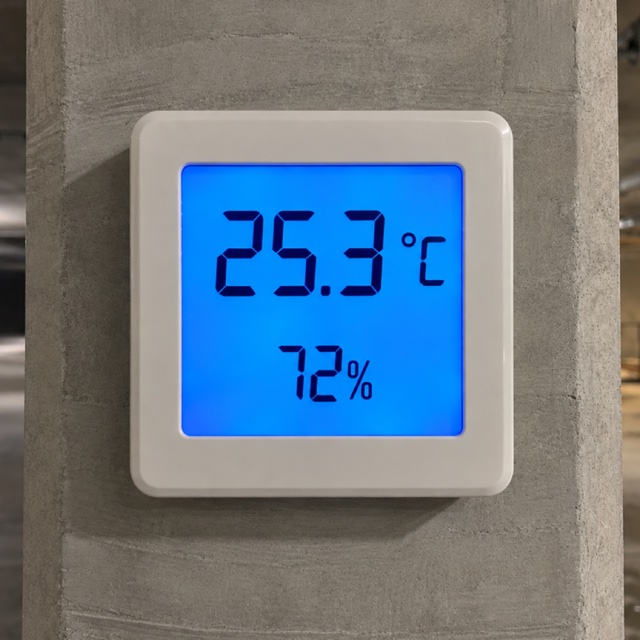
Safety Manager - Site WorkersTake and upload thermometer photos
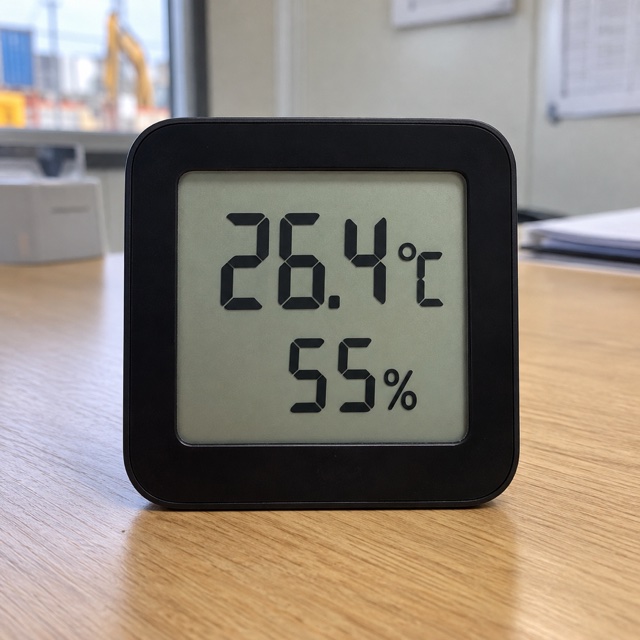
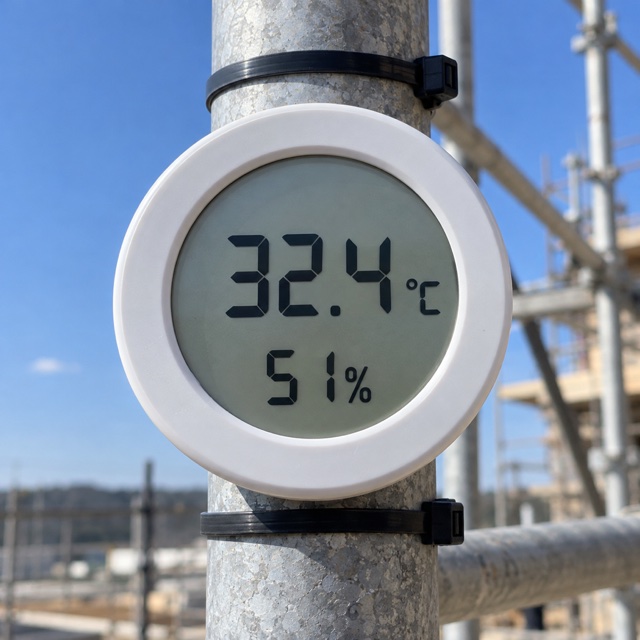
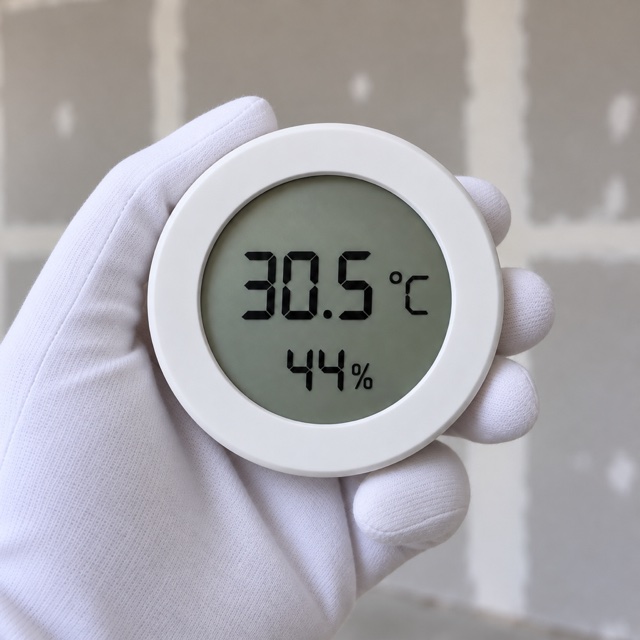
You can store many photos at once on the [Thermometer Photos] tab.
- 01On your phone, open the ‘Thermometer Photos’ tab in Heat Illness Management.
- 02Upload thermometer photos with ‘Upload Photos’ and click ‘Save’.



Check the automatic recognition results
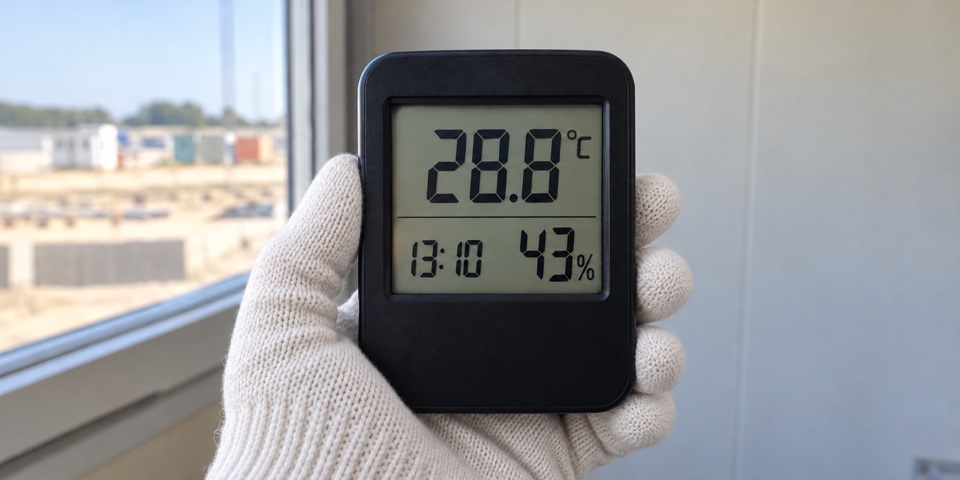
Temperature, humidity, zone and time are recognized from photos and sorted by date. Items that aren’t recognized are shown in red and can be corrected when registering the heat index.
- 01Upload photos and AI extracts temperature, humidity, time and zone automatically, all at once.
- 02Items that can’t be recognized are shown as ‘–’.
Import photos from anywhere to register the heat index
When registering the heat index, use [Import from Archive] to bring in archived photos from mobile or desktop.
- 01On a PC, choose ‘Register Heat Index’ → ‘AI Entry’.
- 02Use ‘Import from Archive’ to load thermometer photos uploaded from a phone, then click ‘Register’.
Heat-wave work levels by heat index
-
Good
< 31℃
Normal work, no mandatory actions
-
Attention
31 ~ 33℃
At least one of cooling,
schedule adjustment or rest -
Caution
33 ~ 35℃
Enhanced measures:
20+ min rest every 2 hours -
Warning
35 ~ 38℃
Enhanced measures + shaded rest area
Outdoor work stop advised 14:00–17:00 -
Danger
≥ 38℃
Enhanced measures
Full stop of outdoor work advised
FAQ
-
If you have photos, [AI Entry] is faster. If you have no photos or recognition is difficult, we recommend Manual Entry.
-
It is shown in red, and you can correct it on the heat index registration screen.
Even if only some of the temperature, humidity, zone or time is not recognized, the recognized values stay as they are, and you only enter the missing items. -
The system judges automatically, and users carry out the actions. When a heat index of 31℃ or higher is measured, a checklist of mandatory heat-wave work actions appears automatically.
To meet the legal duty, users must check and record the health measures actually taken (cooling, schedule adjustment, rest, etc.) in [Register Action]. -
For pre-work checks, entering the action marks the item as completed. For heat index measurements, checking the [Legal Duty] health measures marks it as completed.
-
Subcontractor staff or site patrollers can simply take thermometer photos on mobile and upload them to the archive, and the safety manager can import them on the office desktop to register the heat index.